
View All Blog Posts
March 24, 2026



DevSwarm is built for parallel AI development, but like many tools, it's easy to only scratch the surface of what it can do. We looked at our usage data and found five features that we want to make sure all users know about. Users who have discovered them use them constantly: that's a strong signal that these are worth knowing about.
Many DevSwarm users haven't mastered the keyboard shortcuts yet. Those who do use them use them constantly, which tells you something about how much faster it makes the experience. Here are some of the best ones to know about:
The real value here is that mode switching becomes instantaneous. Instead of clicking through the toolbar to check what your agent changed, you press Cmd+2 to review the diff, then Cmd+1 to get back to building. Once the muscle memory kicks in, you stop thinking about navigation entirely.
This might be the biggest power-user feature in DevSwarm: the ability to spin up a workspace directly from a GitHub pull request or Jira issue. From your repository's dashboard, switch to the GitHub or Jira tab, and you'll see a play button next to each item. One click, and DevSwarm creates a workspace with the branch name and context pre-populated from the issue or PR metadata, including the title, description, status, and author.
The manual alternative is tedious: copy the branch name, create a workspace, paste it in, then go back to the issue to re-read the requirements and write a prompt. This feature collapses all of that into a single action. It is especially powerful for teams working through a backlog, where you want to spin up multiple workspaces from several tickets and let your agents work in parallel.
Note that the Jira integration requires a Team plan. GitHub pull request integration is available on the Pro, Team, and Student plans.
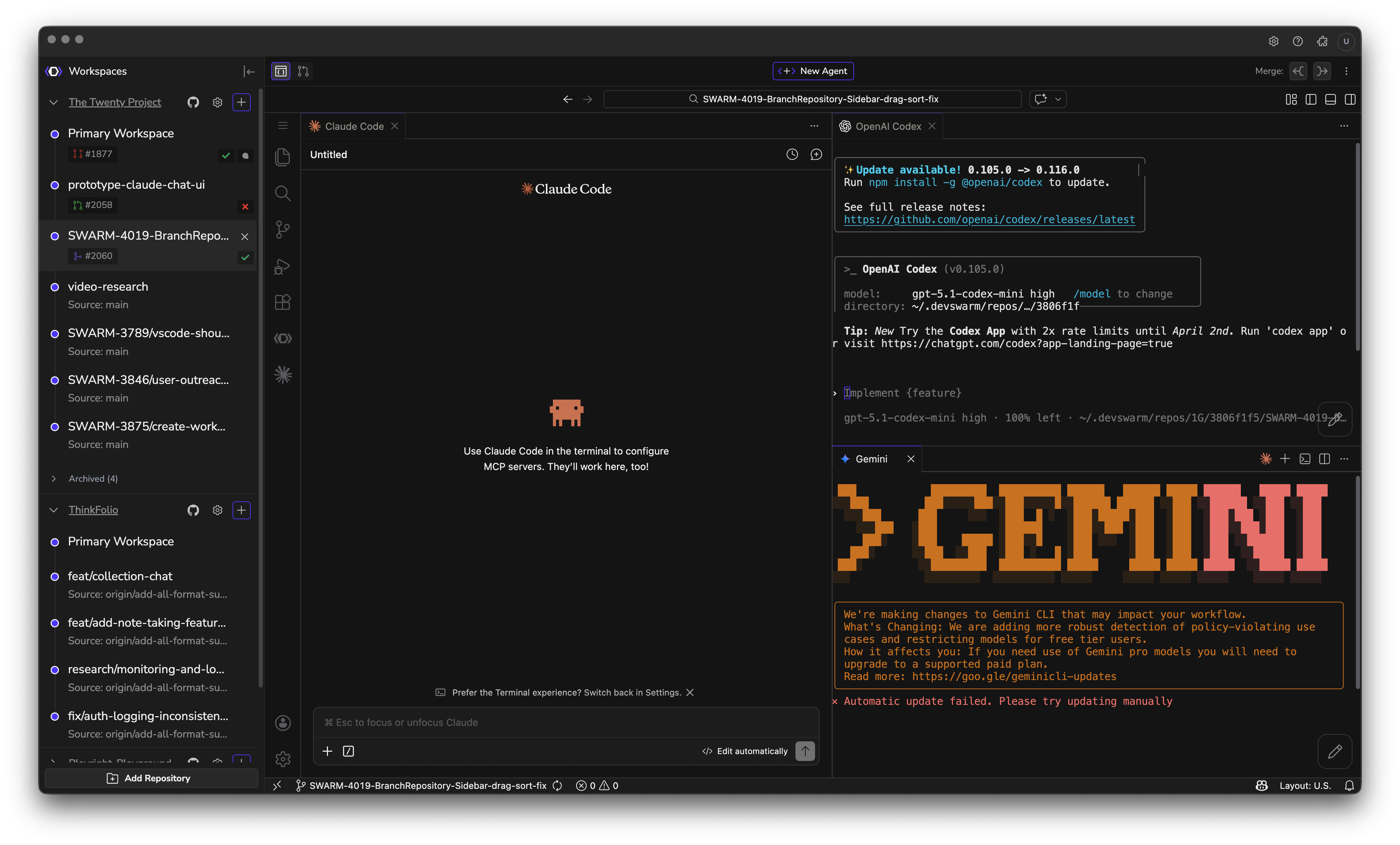
Most DevSwarm users create terminal tabs but some havne't yet gone beyond the default single-tab workflow. The terminal tab bar supports more than that. Click the terminal button to add a new shell terminal alongside your AI terminal. Right-click any tab to access a context menu where you can rename it, or press F2 to rename the active tab. Give your tabs a purpose: "agent," "logs," "manual testing," and so on.
Running multiple terminals means you can watch your AI agent's output in one tab while running manual commands, tailing logs, or executing tests in another. It eliminates the constant context-switching that otherwise interrupts your flow when you need to monitor and interact simultaneously.
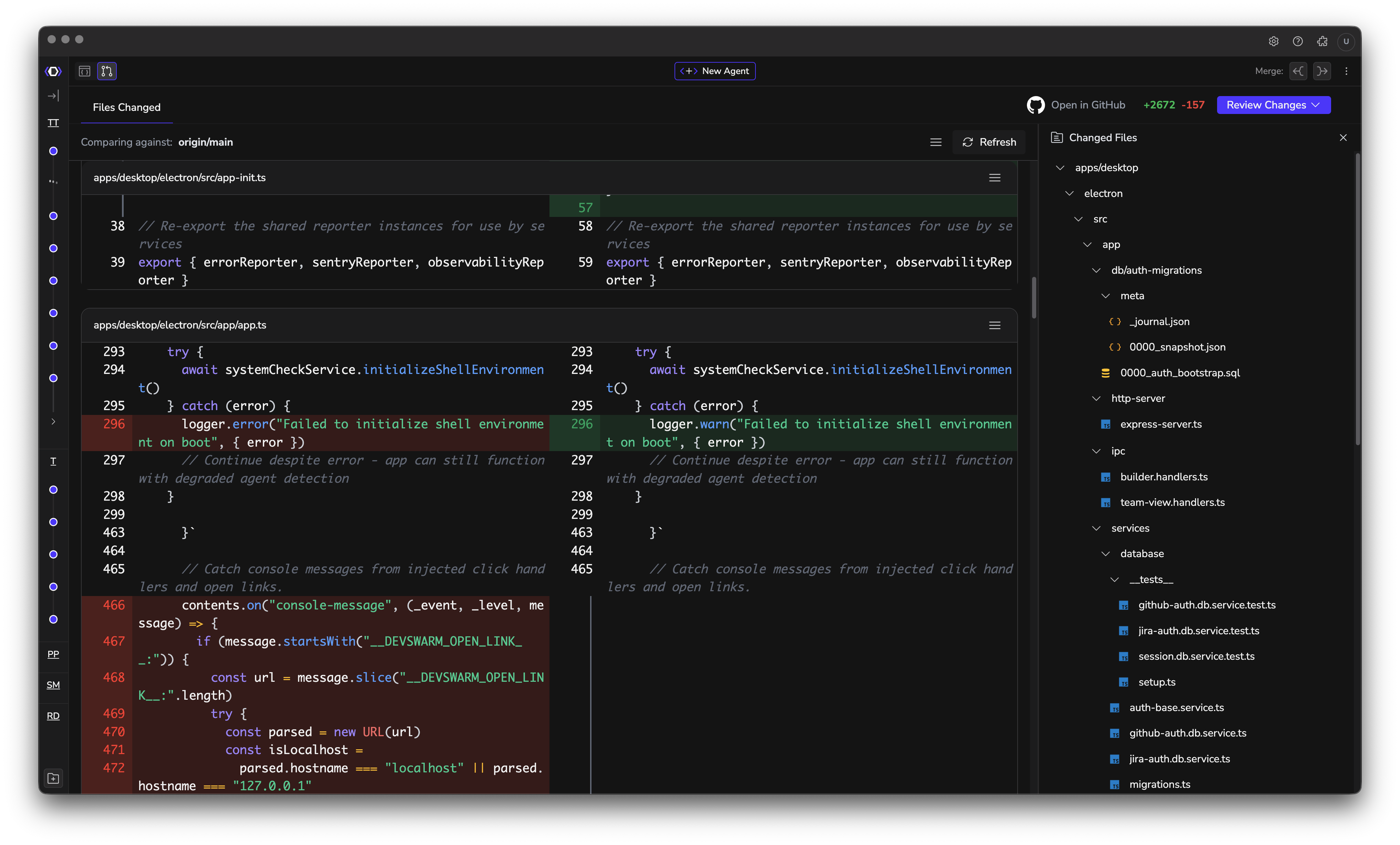
See the full built-in diff viewer; some are still doing PR reviews in the browser instead of doing them fully in DevSwarm.
Switch to Review Mode with Cmd+2 (Ctrl+2 Windows) to view a full visual diff with syntax highlighting supporting over 200 languages, from JavaScript and Python to Rust and GraphQL. You can also open the Git Actions panel from the toolbar on the right side of your workspace to see modified and staged files, then click any file to view its diff. You can toggle between staged and unstaged changes to see exactly what will go into your next commit versus what's still in the working directory. Large diffs are handled gracefully with lazy loading, so files with thousands of changes won't freeze the interface.
This is particularly important when working with AI agents. Your agent may have touched files you didn't expect, or made changes that are subtly wrong. Reviewing diffs inside DevSwarm keeps you in context: you see the change, decide whether to stage or discard it, and commit, all without leaving the app.
DevSwarm has context menus throughout the app that surface common actions without requiring you to navigate to a different mode or dig through settings.
The three-dot menu in the workspace header is the most feature-rich. It provides quick access to opening the workspace in your code editor (with support for multiple editors if you have them configured), copying the workspace path, opening the workspace directory in Finder (macOS) or Explorer (Windows), and workspace management actions like archiving or deleting. Merge and rebase controls are also accessible from the workspace header toolbar, giving you one-click access to merge from source, merge into source, or rebase onto source without switching to a separate git interface.
The terminal supports right-click for copy and paste operations, which is especially useful when working with long file paths or command outputs. Terminal tabs can be renamed by right-clicking and selecting Rename, or by pressing F2, letting you quickly label sessions by purpose. These small interactions add up: each one saves a few seconds and a context switch, and over the course of a day spent managing multiple workspaces, that compounds into meaningful time savings.
The common thread across all five of these features is that they reduce friction between intention and action. Each one eliminates a small detour: a mode switch you didn't need to click through, a terminal you didn't need to leave, a diff you didn't need to open another tool to read. Individually, these are minor conveniences. Taken together, they change the rhythm of how you work with your AI agents.
DevSwarm's core value has always been parallelism: running multiple agents on multiple tasks simultaneously. But parallelism only saves time if managing those parallel workstreams doesn't eat up the time you saved. These features exist to make sure it doesn't. The less time you spend navigating, switching contexts, and setting up workspaces, the more time your agents spend building. That's the whole point.

